Appearance
Customization
You can customize all of your PDFs and email formats according to your requirements.
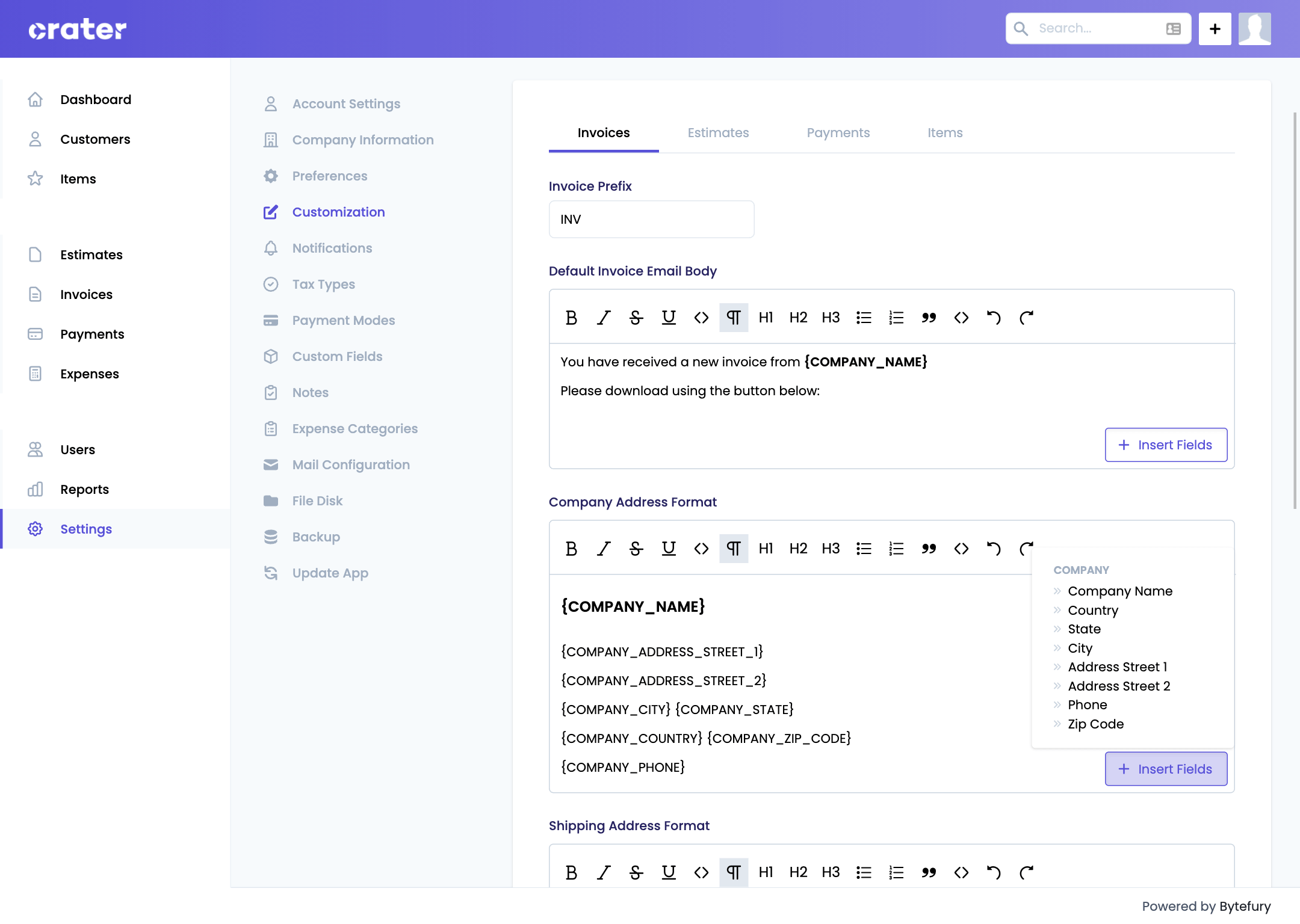
Invoices
Invoice Prefix
Each Invoice is identified by a unique number with a prefix. Example: INV-000001
You can change the default prefix of INV to something else according to your preference using this setting.
Default Invoice Email Body
The description you enter here will be used as default when you try to send an invoice to a customer.
You can now be creative using different fields from the selected Customer, Invoice or Company in the email body.
DEFAULT BODY
You have received a new invoice from {COMPANY_NAME}.

Please download using the button below:
Company Address Format
The company address on your invoice will be displayed according to the given format in this setting.
Each field given in this format will be replaced by the actual value automatically when the PDF is generated.
Also you can use different formatting options like heading, bold, italic etc on the format.
DEFAULT COMPANY ADDRESS FORMAT
{COMPANY_NAME}

{COMPANY_ADDRESS_STREET_1}

{COMPANY_ADDRESS_STREET_2}

{COMPANY_CITY} {COMPANY_STATE}

{COMPANY_COUNTRY} {COMPANY_ZIP_CODE}

{COMPANY_PHONE}
Shipping Address Format
The Shipping address on your invoice will be displayed according to the given format in this setting.
This format can also include customer's custom fields. For example: Tax ID or GST Number
DEFAULT SHIPPING ADDRESS FORMAT
{SHIPPING_ADDRESS_NAME}

{SHIPPING_ADDRESS_STREET_1}

{SHIPPING_ADDRESS_STREET_2}

{SHIPPING_CITY} {SHIPPING_STATE}

{SHIPPING_COUNTRY} {SHIPPING_ZIP_CODE}

{SHIPPING_PHONE}
Billing Address Format
The billing address on your invoice will be displayed according to the given format in this setting.
This format can also include customer's custom fields. For example: Tax ID or Courier/Delivery Details
DEFAULT BILLING ADDRESS FORMAT
{BILLING_ADDRESS_NAME}

{BILLING_ADDRESS_STREET_1}

{BILLING_ADDRESS_STREET_2}

{BILLING_CITY} {BILLING_STATE}

{BILLING_COUNTRY} {BILLING_ZIP_CODE}

{BILLING_PHONE}
Autogenerate Invoice Number
If this setting is enabled, the next Invoice number will be automatically generated when you create a new Invoice.
You can turn this off, If you prefer to type your number manually on each invoice.
Estimates
Estimate Prefix
Each estimate is identified by a unique number with a prefix. Example: EST-000001
You can change the default prefix of EST to something else according to your preference using this setting.
Default Estimate Email Body
The description you enter here will be used as default when you try to send an estimate to a customer.
You can now be creative using different fields from the selected Customer, Estimate or Company in the email body.
DEFAULT BODY
You have received a new estimate from {COMPANY_NAME}.

Please download using the button below:
Company Address Format
The company address on your estimate will be displayed according to the given format in this setting.
Each field given in this format will be replaced by the actual value automatically when the PDF is generated.
Also you can use different formatting options like heading, bold, italic etc on the format.
DEFAULT COMPANY ADDRESS FORMAT
{COMPANY_NAME}

{COMPANY_ADDRESS_STREET_1}

{COMPANY_ADDRESS_STREET_2}

{COMPANY_CITY} {COMPANY_STATE}

{COMPANY_COUNTRY} {COMPANY_ZIP_CODE}

{COMPANY_PHONE}
Shipping Address Format
The Shipping address on your estimate will be displayed according to the given format in this setting.
This format can also include customer's custom fields. For example: Tax ID or GST Number
DEFAULT SHIPPING ADDRESS FORMAT
{SHIPPING_ADDRESS_NAME}

{SHIPPING_ADDRESS_STREET_1}

{SHIPPING_ADDRESS_STREET_2}

{SHIPPING_CITY} {SHIPPING_STATE}

{SHIPPING_COUNTRY} {SHIPPING_ZIP_CODE}

{SHIPPING_PHONE}
Billing Address Format
The billing address on your estimate will be displayed according to the given format in this setting.
This format can also include customer's custom fields. For example: Tax ID or Courier/Delivery Details
DEFAULT BILLING ADDRESS FORMAT
{BILLING_ADDRESS_NAME}

{BILLING_ADDRESS_STREET_1}

{BILLING_ADDRESS_STREET_2}

{BILLING_CITY} {BILLING_STATE}

{BILLING_COUNTRY} {BILLING_ZIP_CODE}

{BILLING_PHONE}
Autogenerate Estimate Number
If this setting is enabled, the next estimate number will be automatically generated when you create a new estimate.
You can turn this off, If you prefer to type your number manually on each estimate.
Payments
Payment Prefix
Each payment is identified by a unique number with a prefix. Example: INV-000001
You can change the default prefix of PAY to something else according to your preference using this setting.
Default Payment Email Body
The description you enter here will be used as default when you try to send a payment receipt to a customer.
You can now be creative using different fields from the selected Customer, Payment or Company in the email body.
DEFAULT BODY
Thank you for the payment.

Please download the payment receipt using the button below:
Company Address Format
The company address on your payment will be displayed according to the given format in this setting.
Each field given in this format will be replaced by the actual value automatically when the PDF is generated.
Also you can use different formatting options like heading, bold, italic etc on the format.
DEFAULT COMPANY ADDRESS FORMAT
{COMPANY_NAME}

{COMPANY_ADDRESS_STREET_1}

{COMPANY_ADDRESS_STREET_2}

{COMPANY_CITY} {COMPANY_STATE}

{COMPANY_COUNTRY} {COMPANY_ZIP_CODE}

{COMPANY_PHONE}
From Customer Address Format
The Shipping address on your payment receipt will be displayed according to the given format in this setting.
This format can also include customer's custom fields.
FROM CUSTOMER ADDRESS FORMAT
{BILLING_ADDRESS_NAME}

{BILLING_ADDRESS_STREET_1}

{BILLING_ADDRESS_STREET_2}

{BILLING_CITY} {BILLING_STATE} {BILLING_ZIP_CODE}

{BILLING_COUNTRY}

{BILLING_PHONE}
Autogenerate payment Number
If this setting is enabled, the next payment number will be automatically generated when you create a new payment.
You can turn this off, If you prefer to type your number manually on each payment.